
Before you start
- Controller
- The device you use to view or control the remote computer.
- Remote computer
- The computer whose screen you want to view or control. Keep it awake, online, and running WorksLink.
The example below uses two Windows computers. If you’re connecting by request, arrange for someone to accept it on the remote computer.
Download WorksLinkMake your first connection
These screenshots show the Windows prototype. The installed app may look different.
-
Install and open WorksLink on both computers
Download the Windows installer on each computer. Open WorksLink on both and check that the remote computer is shown as online.
-
Find the remote computer’s device ID
On the remote computer, find its own device ID in the section for allowing remote connections. Share the ID with the person connecting. For a request the other person will accept, you only need to share the ID.
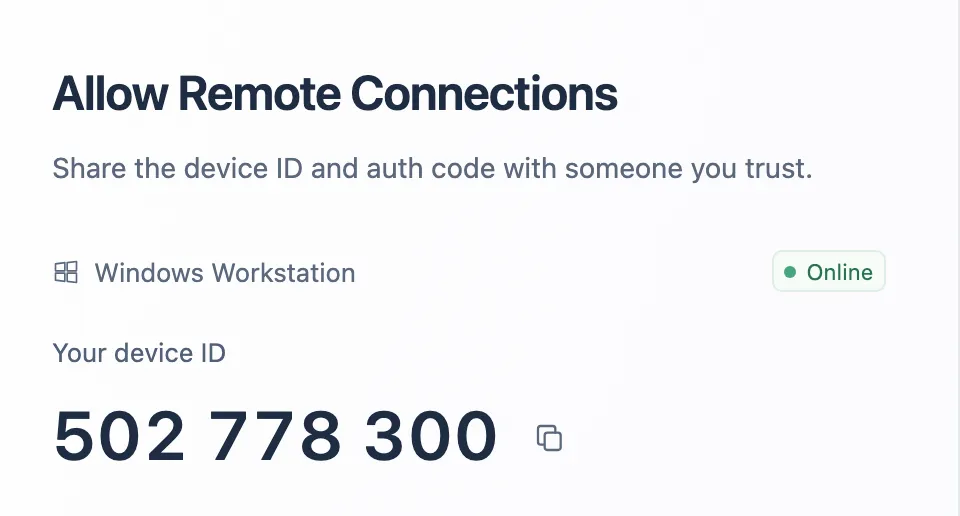
The device ID appears in the left panel of the remote computer’s client. -
Send a remote control request
On the controller, enter the other computer’s device ID, choose Remote Control, and select Connect to open the connection dialog.
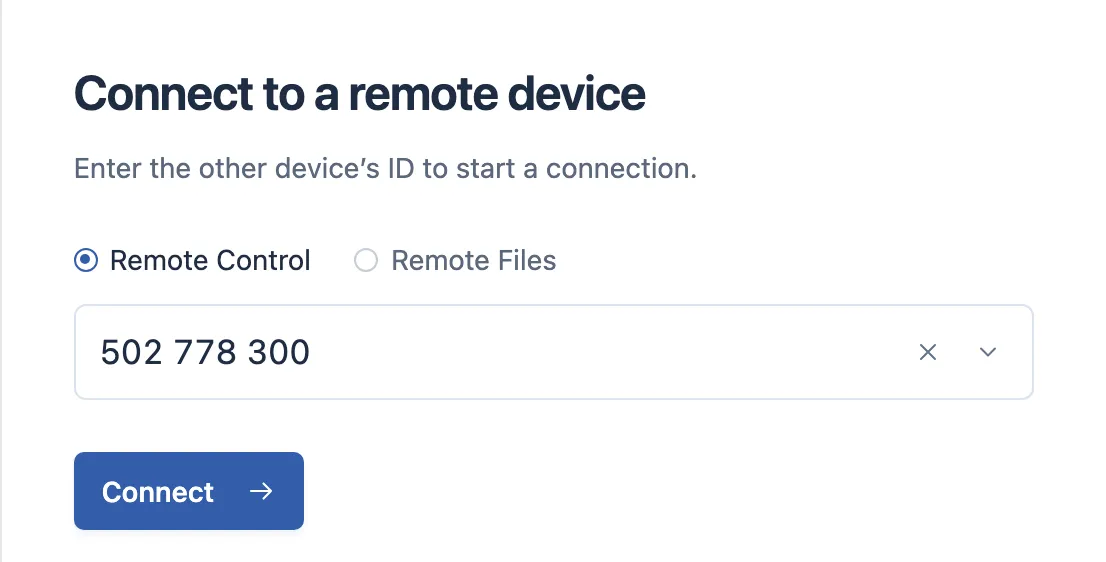
Enter the other computer’s device ID in the right panel and select Connect. -
Choose how to connect
- Wait for approval The person at the remote computer checks who sent the request and accepts it if they recognize the sender.
- Use the remote device’s access code Ask the other person to share the current access code privately. Enter it in the “Remote Device Auth Code” field on the controller and select Connect. If the code is accepted, the session starts without a separate approval.
Once connected, check that you can see the remote desktop and move the pointer. Disconnect when you finish.
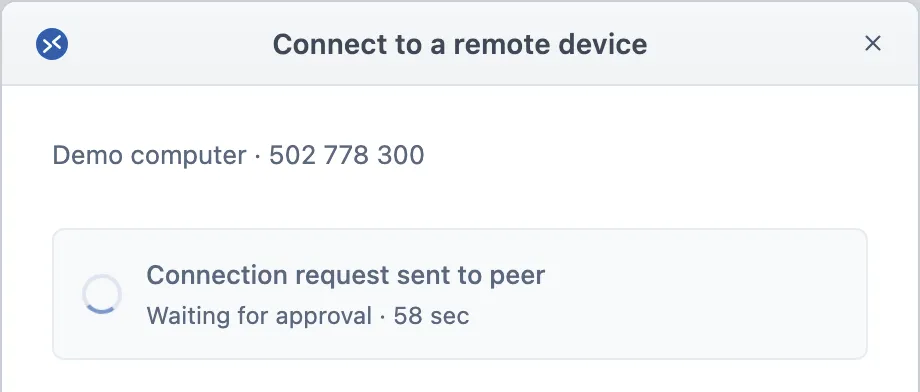
The controller shows a waiting message until the other person responds.
Connect when no one is there
Use unattended access only on a computer you own or are authorized to manage. Set it up on the remote computer before leaving, keep the computer online, and use its configured access code when connecting. Use a unique code and remove or change it when access is no longer needed.
Install on your platform
- Windows
- Can initiate and receive connections. Choose the 64-bit installer or use the 32-bit download if required.
- macOS
- Can initiate and receive connections. On the Mac being controlled, follow the app’s prompts for screen recording and Accessibility permissions as needed.
- Linux
- Can initiate and receive connections on supported desktop setups. Check the download page for the currently tested systems and packages.
- HarmonyOS
- Use a phone with HarmonyOS 5 or later to control a computer. Install the client from Huawei AppGallery using the link or QR code on the download page.
See the download page for the latest availability. Download WorksLink
Troubleshooting and FAQs
The remote device appears offline
Check the ID, then verify that the remote computer is awake, connected to the internet, and running WorksLink.
The other person hasn’t received the request
Check that you entered the remote computer’s ID and that the other person has WorksLink open. Send a new request if the first one times out.
The access code doesn’t work
Check that you’re using the current code for the correct device. If it was reset, ask the owner to confirm the request or share the new code privately.
The screen is black or I can’t control it
If the remote computer runs Windows, check whether the User Account Control (UAC) prompt was approved on that computer. If the remote computer is a Mac, check WorksLink’s Screen Recording and Accessibility permissions.