
The example uses the Example IT organization, the IT Pilot group, and a Windows computer named Pilot PC 01. Use an authorized test computer and an account you can use to verify member access.
The console screenshots use sample data.
Check your organization and permissions
Web console → Overview
- Sign in to the web console and check the selected organization in the top-right corner. Check its plan and that you can manage devices, policies, deployments, and members. Confirm that someone on your team can view the connection logs before running the pilot.
- On the support computer, install the WorksLink Remote Desktop app. Use the account that has joined the organization for the connection test later in this guide.
Before moving on
You know which organization will own the device and which accounts will administer it and connect to it.
Create a group and a policy
Remote Desktop → Groups and Policies
- In Groups, create IT Pilot. Use this group to control which members can access the pilot computer.
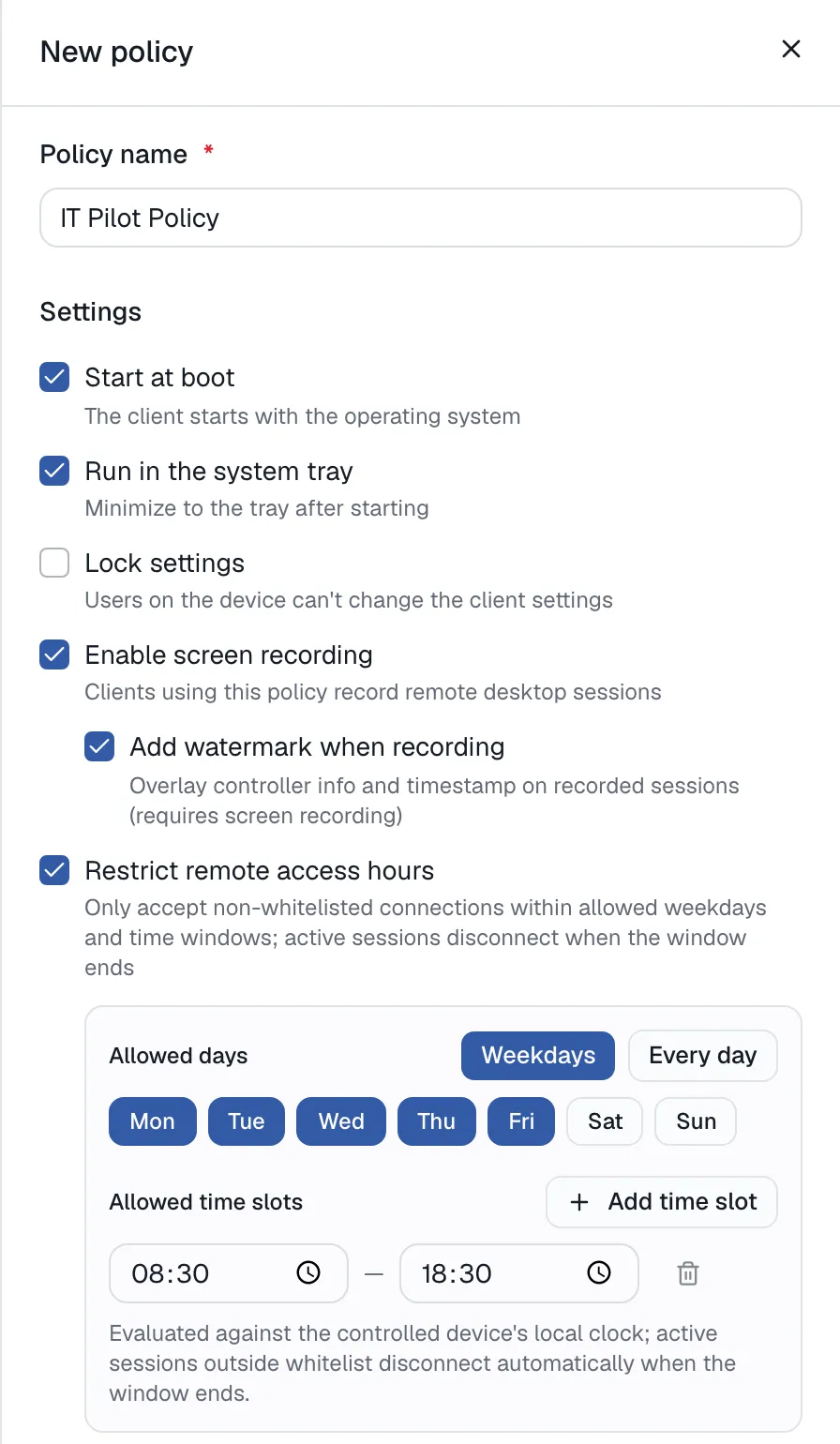
- In Policies, choose New policy and name it IT Pilot Policy. A policy configures the remote computer’s client. Choose the settings below, save, then select the policy when you create the pilot deployment in Quick deploy.
- Client startup and settings
- Start at boot launches WorksLink with the operating system. Run in the system tray minimizes it after startup. Lock settings prevents users at the remote computer from changing the client settings.
- Access hours and exceptions
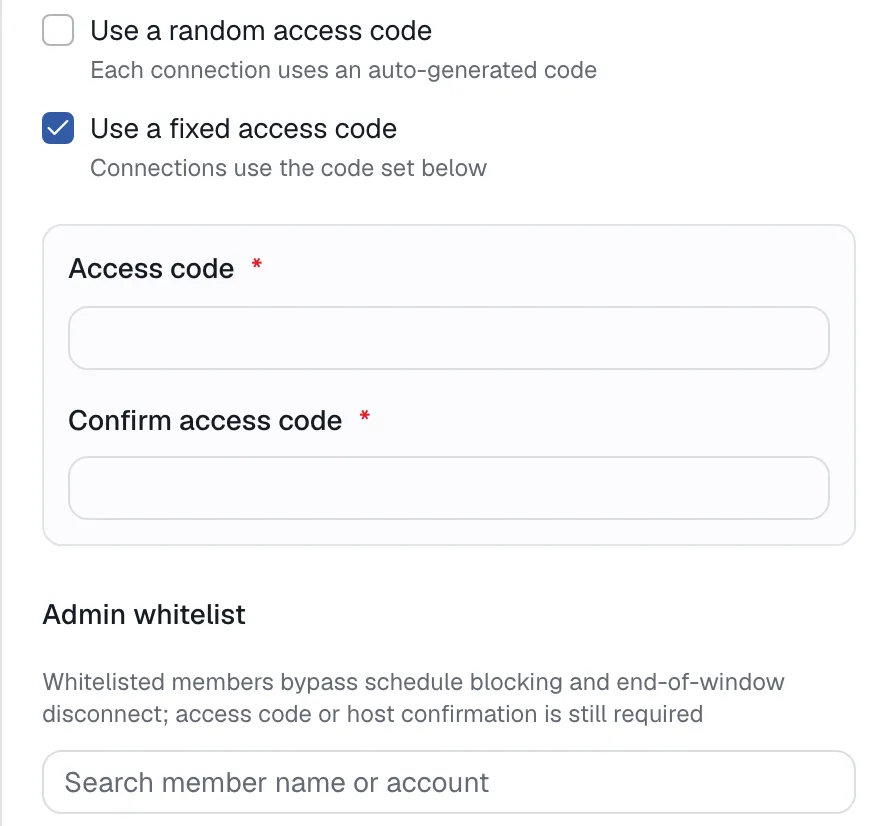
- Turn on Restrict remote access hours and choose the allowed days and times. The example uses Monday through Friday, 08:30–18:30 in the remote computer’s local time. Members outside the Admin whitelist can start sessions only within the window, and their active sessions disconnect when it ends. Whitelisted members are exempt from those time limits and still need an access code or confirmation at the remote computer.
- Access codes
- A random access code is generated by the client for each connection. For unattended access, you can set a fixed access code and enter it again to confirm. To replace an existing fixed code, enter and confirm the new one. Leave both fields blank when editing other settings to keep the current code.
- Screen recording and watermark
- If your plan supports recording and the pilot calls for it, turn on Enable screen recording. Then optionally turn on Add watermark when recording to include the controller’s information and a timestamp in the recording.
Before moving on
Confirm the group and policy are available in Quick deploy. Leave the pilot member off the whitelist to verify how the schedule applies to ordinary members.
Add or deploy a device
Remote Desktop → All devices or Quick deploy
- If WorksLink already runs on the computer, find its device ID in the app. Use All devices to add it to the organization and assign it to IT Pilot.
- For a new installation, create a deployment in Quick deploy. Select the policy and turn on automatic grouping with IT Pilot selected. Share the deployment link only with the people installing the pilot. Run the installer on the computer that will receive connections.
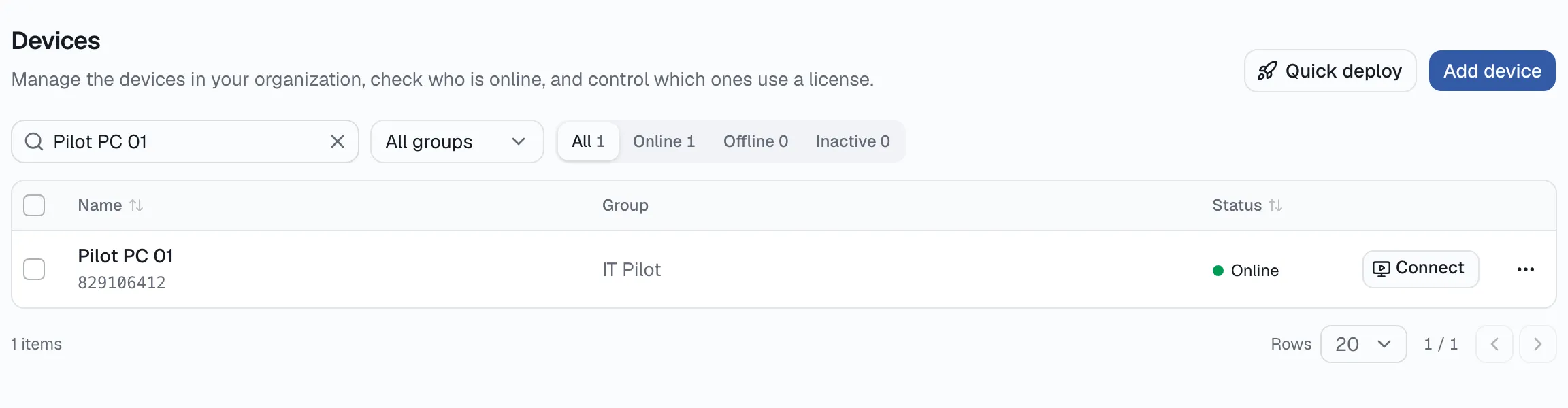
- Return to All devices and look up Pilot PC 01. Match its device ID to the app and check its group, online status, and activation status before adding more computers.
Before moving on
The intended device appears online in IT Pilot. Confirm the policy on the pilot before reusing the deployment link.
Invite a colleague and grant group access
Members → Invites & requests / Member management
- Invite a test member or approve their request to join. Confirm they joined the intended organization and that their account is active.
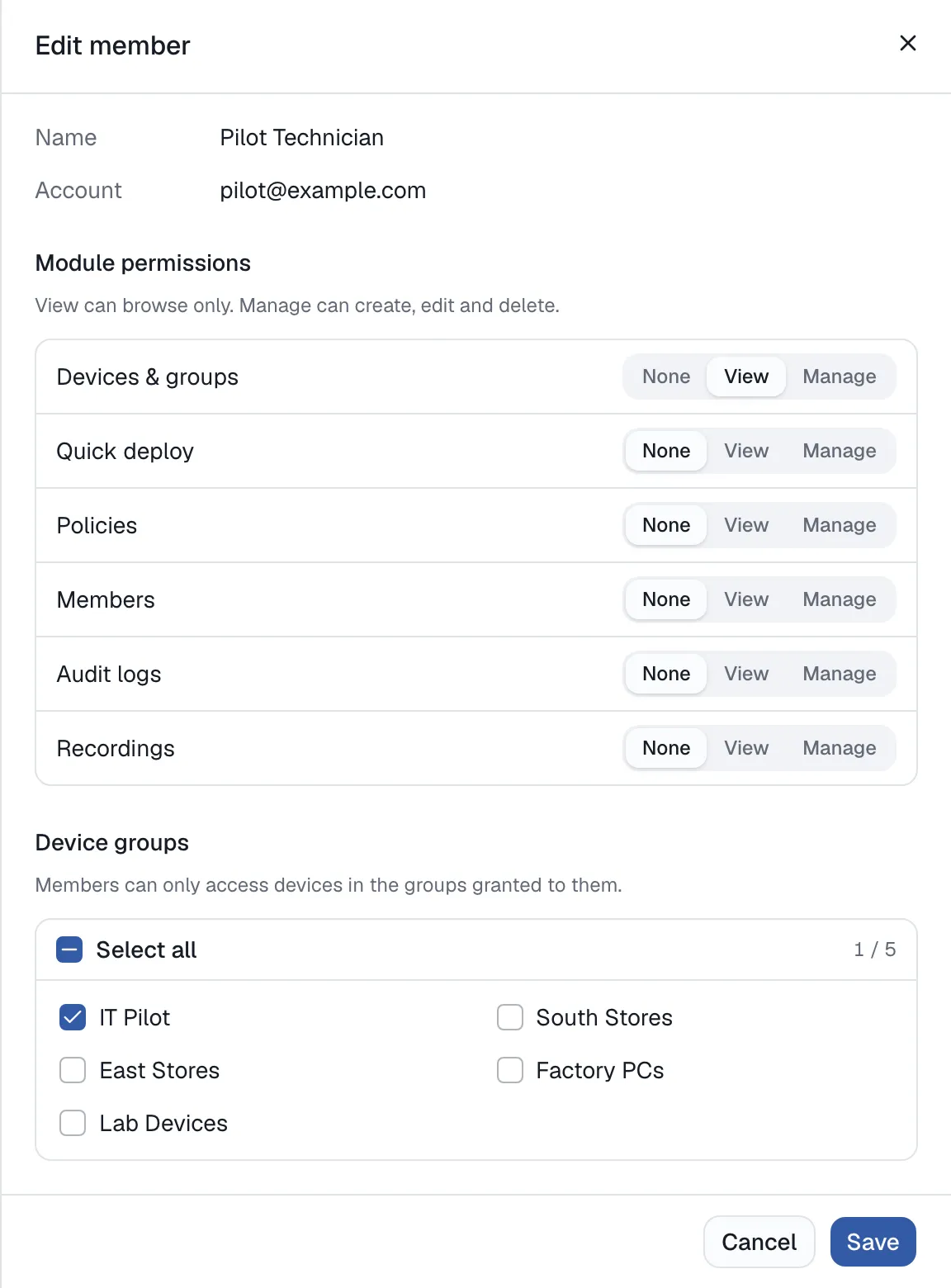
- In Member management, grant the device permissions they need and select IT Pilot under authorized groups. Module permissions determine what the member can do in the console, and group access determines which organization devices they can work with. Grant audit permissions separately to the people who need them.
Before moving on
The pilot member can see IT Pilot after signing in with the invited account. Keep a second, unassigned account for the access check.
Connect from the desktop app
Desktop app → Device Management
- Sign in with the invited account, open Device Management, and find Pilot PC 01 in the authorized group. Match its ID, then start Remote Control while the policy allows access.
- Follow the connection prompt. Ask the person at the remote computer to accept the request or use the device’s authorized access code if that is how the device is configured. Note the start time and disconnect once you can see and control the desktop.
- Repeat with the unassigned account and verify that it cannot connect to the pilot computer through the organization’s device list.
Before moving on
The assigned member can complete a session and the unassigned account cannot reach the device through the organization. If you enabled a schedule, try again with the assigned member outside the allowed hours and confirm the connection is refused.
Security and audit
Security audit → Connection logs and Recordings
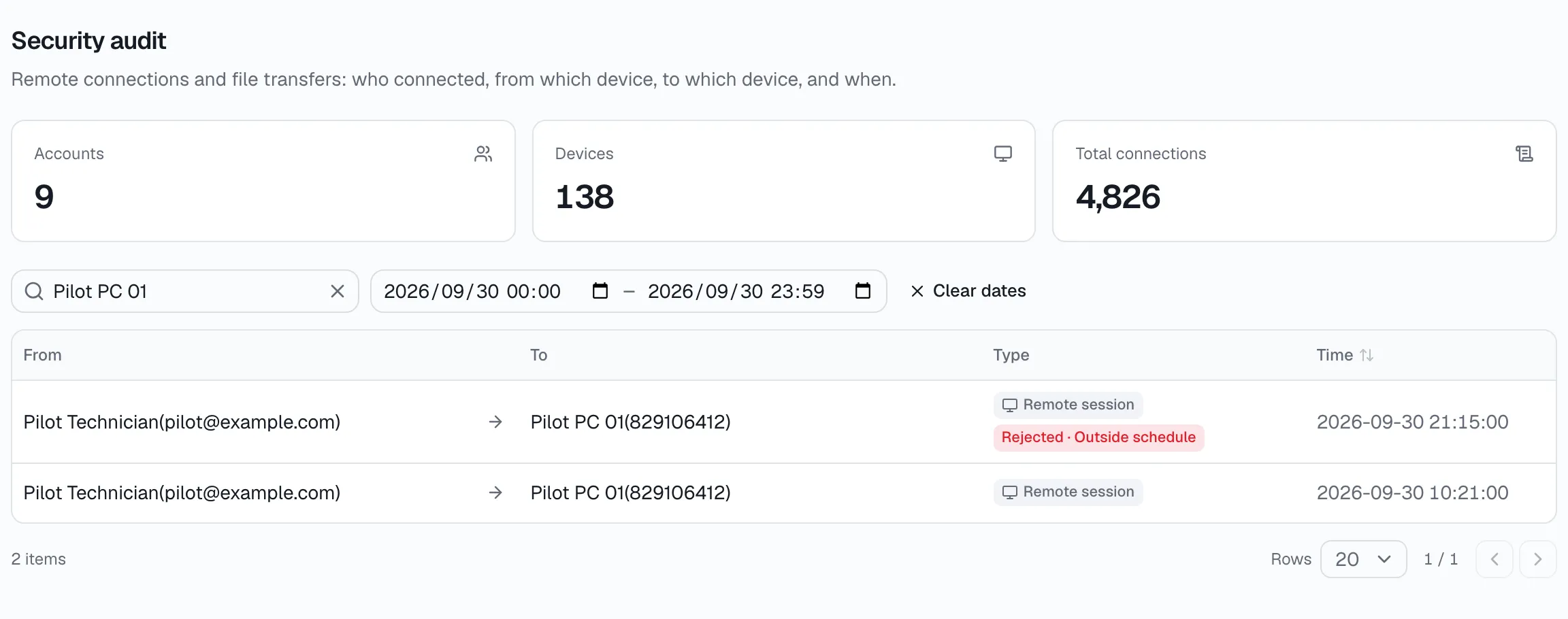
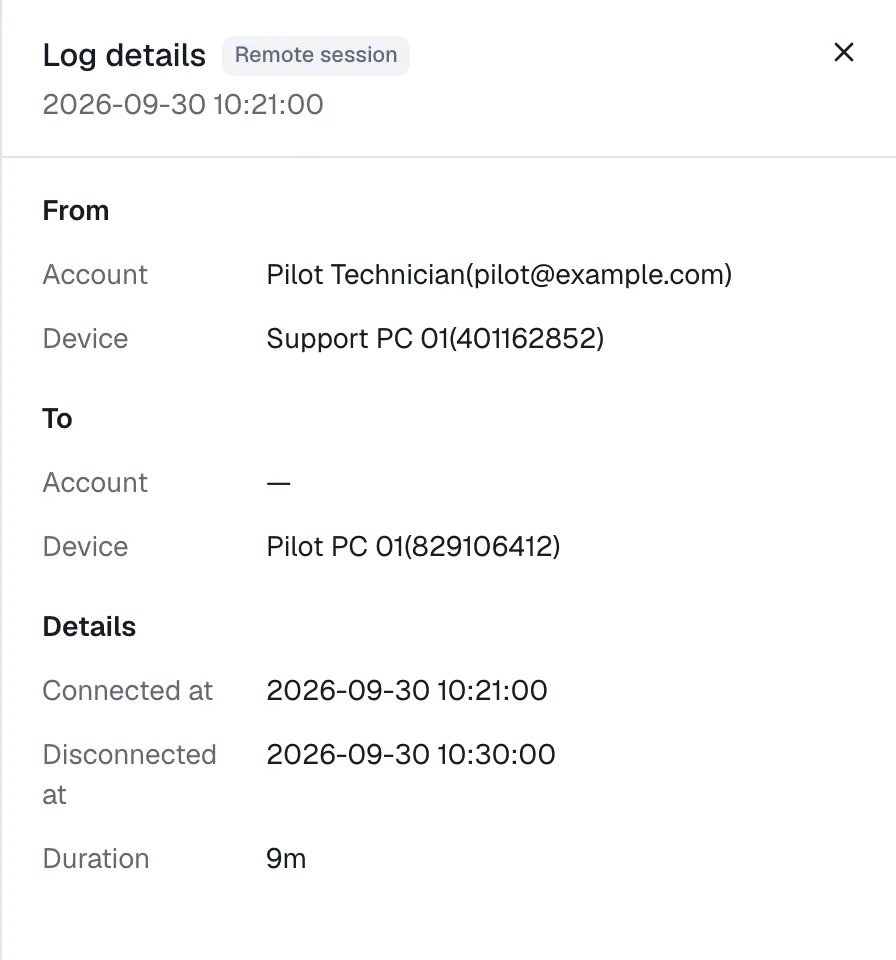
- In Connection logs, filter by the device and test time. Open the matching row and verify the member, device IDs, start and end times, and duration. If you tested outside allowed hours, also look for the rejected attempt in the list.
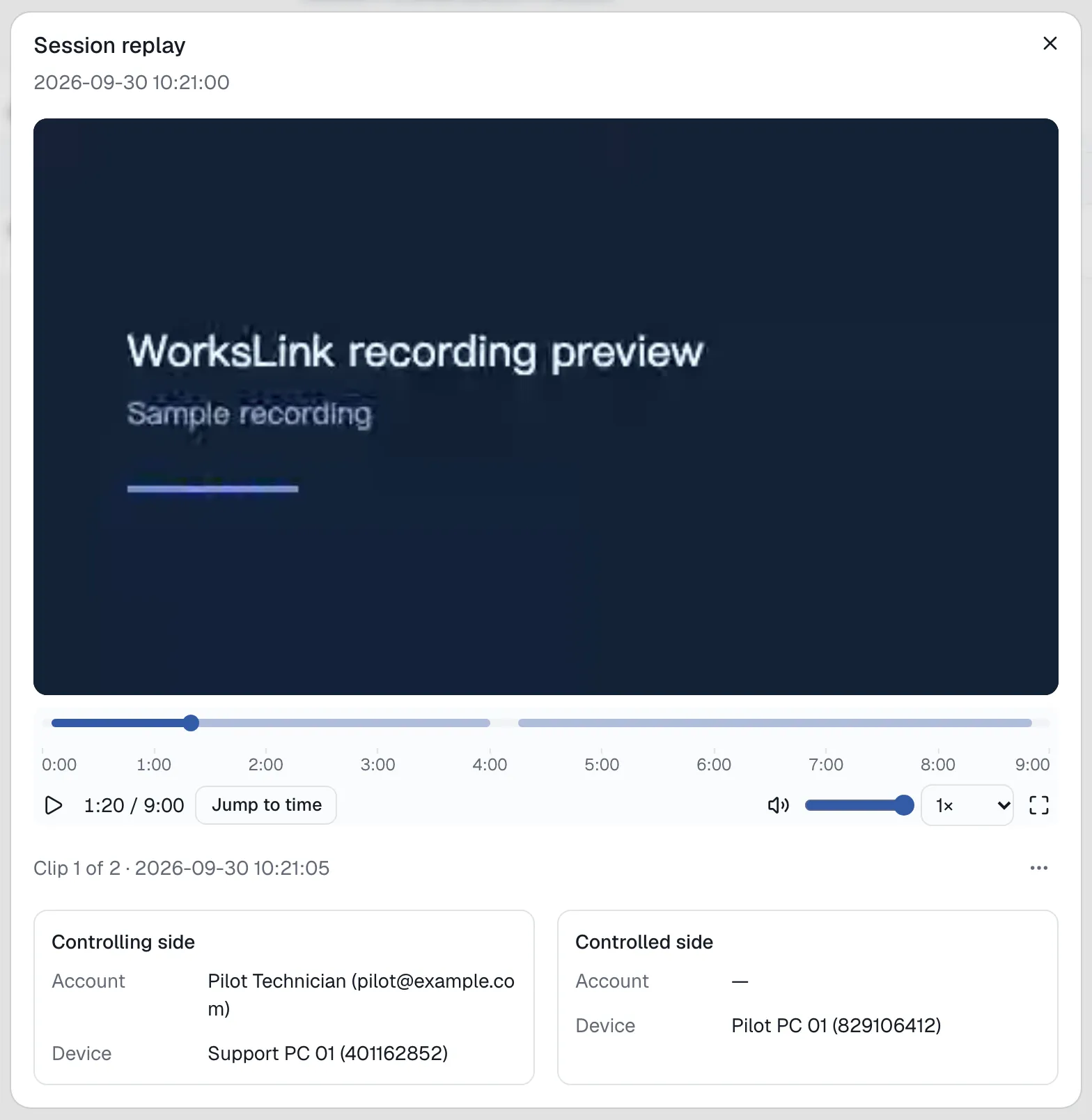
- If recording was enabled and you can view recordings and connection logs, open Recordings. Under By session, match the device and start time, then select Play session. Use the timeline to find the part you need. For unmatched recordings, look under By clip. If the recording is missing, check the recording policy, upload status, and retention settings.
- For ongoing maintenance, review member access when people change roles or leave. Remove unneeded group access or deactivate the member in Member management, then confirm the change with the affected account where practical.
Before moving on
You can identify the pilot session in the logs and, where applicable, find and play its recording.
Troubleshooting the rollout
The pilot device is missing or offline
Check the organization, device ID, and group. Confirm the app is running on the pilot computer, it can reach the network, and the device is active.
The member cannot find the device
Confirm the invited account is signed in and active. Check the member’s device permissions and authorized groups, then confirm the computer is still in the intended group.
The policy does not seem to apply
Check that the deployment selected the intended policy. For access hours, check the remote computer’s local time and any configured exceptions. Verify on the pilot before deploying to other devices.
If your team needs to connect to an internal service such as SSH or a database, see the WorksLink Access guide.